EV-Art: Painting and Drawing App
Turn images into paintings
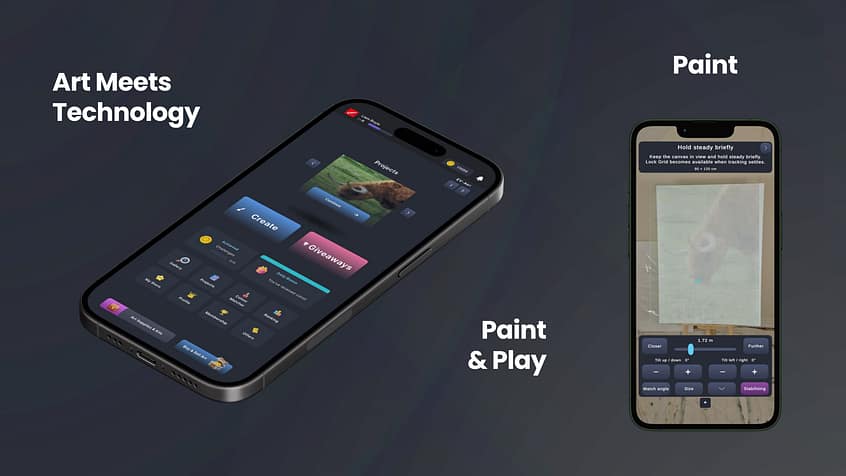
Bring your ideas onto the canvas with EV-Art, a painting and drawing app for creating physical artwork and practising your skills. Use image grids, paint colour-mixing tools, stencil guides and AR positioning to work from a reference at your own pace.
Start with an image, set your canvas dimensions and break the image into smaller sections. Explore the colours you want to mix, prepare your outlines and return to your saved project as your painting develops.
Plan a painting with photo grids
A detailed reference can feel easier to approach when you work on one section at a time. EV-Art divides your image into a grid so you can focus on individual areas while keeping the overall composition in view.
Use a painting grid to compare the position of shapes, follow proportions and identify blocks of colour before adding finer details. Enter your real-world canvas dimensions to plan your guide around the surface you are using.
Whether you are working on a portrait, an animal painting or a landscape, the grid gives you a consistent reference to return to throughout the project.

Explore paint colours and mixing
Finding the right colour is part of the painting process. EV-Art’s colour-matching and paint-mixing tools help you work towards the colours in your reference image.
Explore individual colours and use blocks of colour to simplify more complex areas. Compare your reference with the paint you mix as you build up your artwork.
The tools provide a starting point for your own judgement. Screen settings, lighting, paint brands and pigments can affect how colours appear, so test a small mix before applying it to your painting.

Use AR drawing and stencil guides
Prepare an outline with stencil guides, or use AR positioning to place a reference guide within your camera view. Adjust the guide in your workspace to help plan the scale and position of your drawing or painting.
These tools can support drawing studies, painting preparation and checking the placement of important shapes before you begin adding colour.

From reference image to canvas in four steps
- Choose your reference. Open an image you want to work from. Use your own photograph or an image you have permission to reproduce.
- Plan the size and layout. Enter your canvas dimensions and prepare a grid or stencil guide for the composition.
- Explore your colours. Use colour matching and mixing tools as a starting point, then test your paint on a spare surface.
- Create at your own pace. Work through the image section by section and save your project so you can return to it.
Practise with drawing challenges
Take a break from a longer painting project and practise with EV-Art’s drawing challenges. Follow the challenge stencil, view your score and compare your results on the leaderboards.
Practice sessions give you another way to work on control and accuracy. Return to a challenge to see how your results change as you become more familiar with the task.
Some sponsored challenges include leaderboard-based prizes. Available events, eligibility, entry requirements, judging and rewards are explained in the rules for each challenge.

Discover artwork, supplies and offers
EV-Art connects creative practice with the wider Everyone Values Art community. Explore artwork by Liam Boyle and independent artists, and discover the art supplies and offers available through the app.
Looking for a finished piece? Browse the artwork shop.
Selling your own work? Explore artist memberships and Human-Made Index verification. Website artist memberships are separate from app membership.
Questions about the EV-Art app
Is EV-Art a digital painting app?
EV-Art’s painting tools help you plan artwork made with physical paints and materials. Use your device for reference grids, colour tools, stencils and AR guides while you paint on your chosen surface. Drawing challenges are completed within the app.
Can I turn a photo into a painting grid?
Yes. Use a reference image to create a grid, then work through the composition in smaller sections. Real-world sizing helps you plan the guide for your canvas.
Does EV-Art help with paint colour mixing?
Yes. Colour-matching and mixing tools help you explore the colours in your reference. Treat the results as guidance and test your paint mixture, because materials, lighting and screen colour can differ.
Is EV-Art free to download?
EV-Art is free to download. The app includes advertising and an optional app membership. Check the current app listing and in-app screens for feature access, membership terms and any purchases.
Can I use EV-Art on iPhone or Android?
EV-Art has listings on the App Store and Google Play. Check the listing for your device’s operating-system requirements and the features available in its current version. AR availability depends on compatible hardware and permissions.
Is app membership the same as an artist membership?
No. App membership relates to the mobile app. Website artist memberships cover services such as artwork verification, certificates and showcase features. Review each membership’s benefits separately.
Where can I get help?
Visit the EV-Art contact page for support. Include your device, app version and a description of the problem so we can investigate.
Start your next painting with EV-Art
Choose a reference, plan your canvas and take your artwork one section at a time. Download EV-Art to explore painting grids, colour tools, AR drawing guides and creative challenges.